To give a photo a more mysterious look, we are going to add some fog. Choose an image that suits the effect and open it in Photoshop.
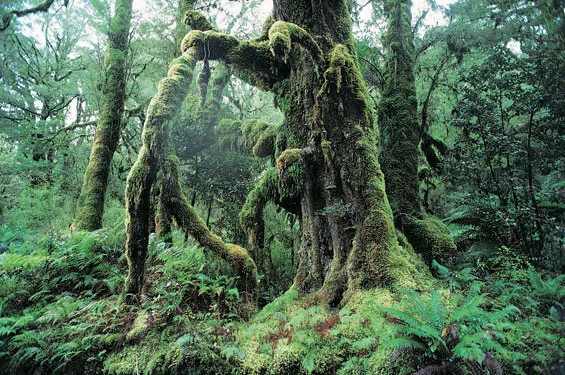
Fog also creates a sense of depth. Nearby objects remain clearly visible, but the farther away they are, the hazier they become. With some effort, you can recreate this effect digitally.
Press the Q key to enter Quick Mask mode in Photoshop. Here you can easily paint onto a selection or create a gradient.

Select the Gradient tool and draw a line from the foreground to the background. This makes the fog denser as the distance increases.
Refining the Selection
Once you think the gradient looks right, start refining the selection. Press B to select the Brush tool and paint everything you want to preserve in red. Leave the areas where you want fog transparent.
Tip: Because fog has no hard edges, use a soft-edged brush. Experiment with different opacity percentages for a subtler effect.
When you have finished making the selection, press Q again to exit Quick Mask mode. At the bottom of the Layers panel, click the Create New Layer icon, then click Add Layer Mask in the same row.
You now have an empty layer with the selection you created as its layer mask.
Adding and Adjusting Fog
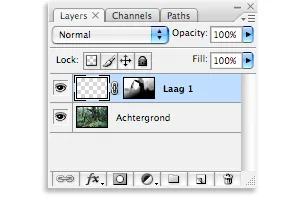
We are going to fill the empty layer with a light gray color. To do this, choose Edit > Fill, or press Shift+F5.
Choose Color from the drop-down menu to open the color picker. Select a light gray color and click OK.
Now that you have added the fog, it may not look quite right yet. The fog is often too dense in some areas, or the transitions are too harsh. Lowering the layer opacity usually solves the biggest problems.
It can also help to choose a different blend mode, such as Pin Light. Finally, apply Gaussian Blur to the fog layer to soften the transitions. Choose Filter > Blur > Gaussian Blur, then set the radius to 50 pixels.
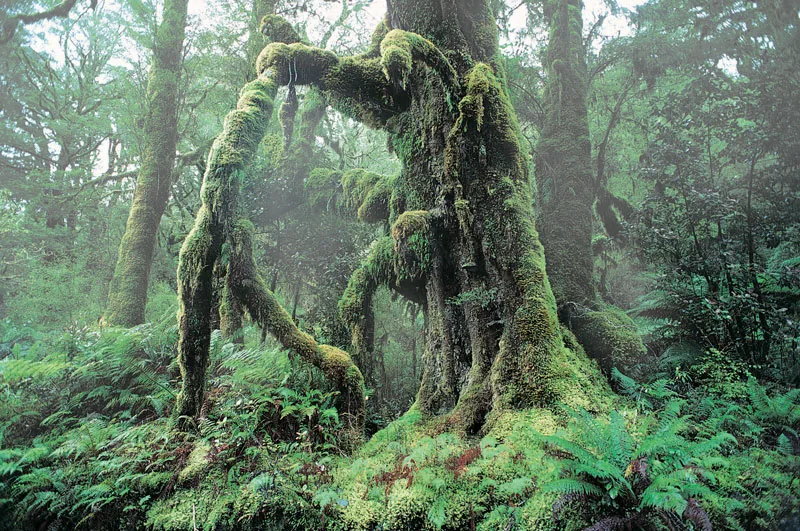
This technique can make certain photos much more dramatic in no time. You can also use it to make distracting background elements far less noticeable.
Produced by Peter Sparks