One of my favorite features in Lightroom 3 is that you can now shoot tethered directly from your camera. And since I learned how to apply the correct white balance automatically when a photo first enters Lightroom, I absolutely love it. All you need is a gray card, available from any photography retailer.
Step One:
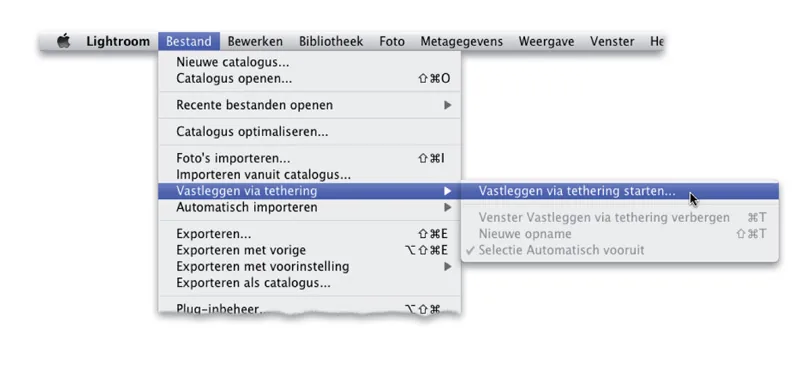
First, connect your camera to your computer (or laptop). Use a USB cable, then open the File menu and choose Start Tethered Capture under Tethered Capture (see image).
In the Tethered Capture Settings dialog, choose how the images should be processed when they are imported into Lightroom. (Chapter 1 has more information about this dialog and its settings.)
Step Two:
After setting the exposure—unless you are shooting in daylight—position your model and hand them a gray card .
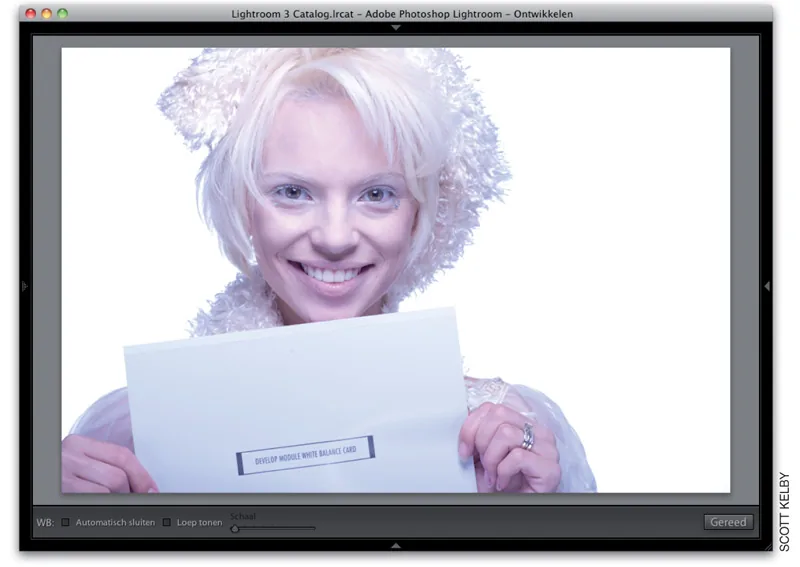
If you are photographing a product, place the gray card against it or nearby under the same light. Take a test shot with the gray card clearly visible (see image).
Step Three:
Wait for the photo containing the gray card to appear in Lightroom. At the top of the Basic panel in the Develop module, select the White Balance Selector tool (W), then click the photographed gray card once.
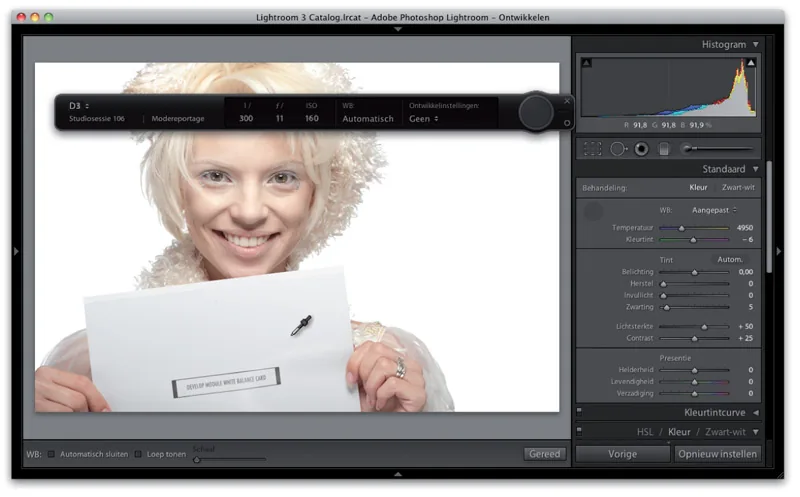
That is all there is to it. The white balance for this photo is now correct, and this setting will automatically improve every other photo as it is imported.
Step 4:

Press Command-T (PC: Ctrl-T) to return to the Tethered Capture window, then choose Same as Previous from the Develop Settings drop-down menu. That is all there is to it.
Remove the gray card from the frame—or ask your model to hand it back, since they have probably had enough of holding it by now—and start shooting.
As each photo enters Lightroom, it will automatically receive the white-balance setting you selected.
This ensures that every photo in the series ultimately has the correct white-balance setting, with no need for further editing.
This was a preview from Scott Kelby's The Lightroom 3 Book, Chapter 4, Developing Your Photos (4).