A crooked horizon is a common problem in photography. Photoshop lets you straighten one quickly and accurately without guessing at the rotation angle. This short Photoshop tip explains how to do it efficiently with the Ruler tool.
In this example, we have a beach photograph with a crooked horizon.
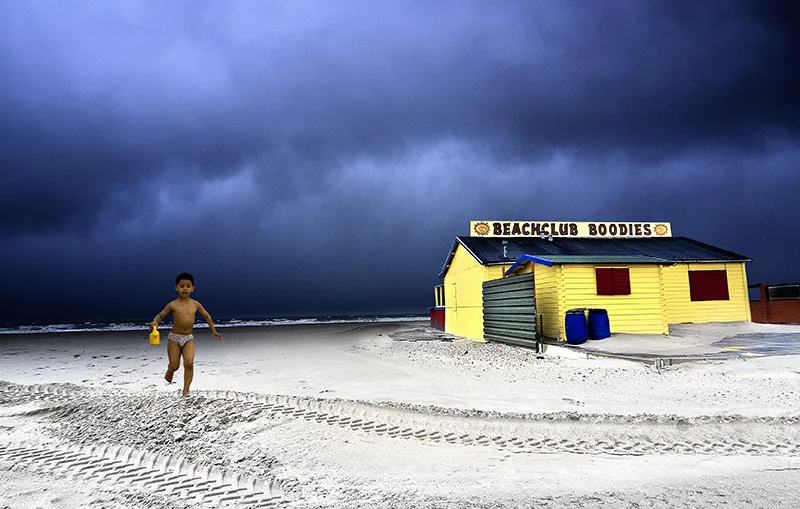
Although we did not hold the camera level when taking the picture, the photograph can still be corrected with Photoshop's Ruler tool.
Straightening a Crooked Horizon in Photoshop with the Ruler Tool
The Ruler tool is hidden behind the Eyedropper in the toolbar. Hold down the Alt key and click the Eyedropper icon until the Ruler appears.
Alternatively, position the pointer over the Eyedropper and hold down the mouse button. The other tools will appear to the right; then select the Ruler.
Go to the Image menu and, under Rotate Canvas, choose Arbitrary.
Use the Ruler to draw a line parallel to the crooked horizon. This will usually be a clear, straight line along which you can drag the Ruler. If the line is not right on the 1st try, position the pointer over the + signs at its ends and move either endpoint.

If you look closely, you can see the slanted line drawn parallel to the crooked horizon.
Go to the Image menu and, under Rotate Canvas, choose Arbitrary. The window that opens already shows the correct angle, based on Photoshop's own calculation.
Photoshop also automatically indicates whether to rotate the photograph left or right. Click OK and your photograph will be straightened automatically.
Tip: You can also use the Ruler to straighten crooked vertical lines in a photograph. It works the same way, for example when the horizon is not clearly visible or when photographing buildings.
The line drawn with the Ruler remains visible until you rotate the image. To remove the line and measured angle before rotating, click Clear at the upper right of the options bar. You can then draw a new line with the Ruler and have the angle calculated again.
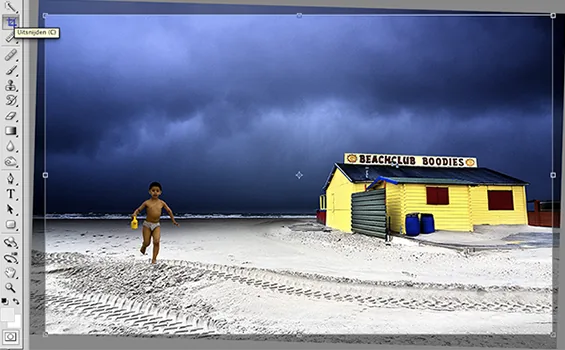
Rotating the image creates white corners around the edges. You can now reframe the photograph with the Crop tool. Press the C key and drag the desired crop over the image.
Voilà—you now have a level horizon, with a slightly different crop than the original.
Produced by Irene van der Meijs