Anyone who takes a lot of photos knows the problem: a Lightroom catalog that slowly becomes clogged. Every shoot adds hundreds or thousands of files. A few versions, duplicate imports, sequences of nearly identical images, and old selections that were never cleaned up. Lightroom Classic 15.4 makes that cleanup smarter, but working safely remains important.
There are, of course, other programs for organizing and editing photos. Still, many photographers choose Lightroom Classic because it combines both worlds: a clear catalog and an extensive Develop module for RAW files. You can import, select, keyword, rate, find, and edit images within one consistent workflow. That is especially useful for photographers with large archives, recurring assignments, or many RAW files, because Lightroom is not just about individual photos; it manages your entire image collection.
Lightroom Classic is more than an editing program for many photographers; it is also the memory of their photography. It holds their vacation photos, assignments, RAW files, edits, stars, keywords, and collections. That is precisely why cleanup feels daunting. You want space and clarity, but you do not want to accidentally throw away good images.

With the new features in Lightroom Classic 15.4, Adobe is getting closer to solving a problem photographers have faced for years: how do you find duplicate photos, select more quickly from groups of similar images, and keep a catalog manageable without resorting to wholesale deletion?
Why Lightroom catalogs fill up so quickly
A full catalog usually does not happen all at once. It happens slowly. You import a memory card, make a quick selection, edit the best photos, and move on to the next shoot. The rest stays behind.
After a few years, Lightroom contains not only the good photos, but also test shots, failed sequences, duplicate exports, old imports, nearly identical photos, and folders whose contents you no longer remember exactly. The number of files can grow especially quickly with weddings, events, travel, sports, wildlife, and family photography.
The goal, then, is not to throw away as much as possible. The goal is to see more clearly what you have.
There is another factor: photographers are often cautious. A photo that seems unimportant today may prove valuable later. A failed shot may be part of a story. One of two nearly identical photos may have the better gaze, posture, or hand gesture. That is why cleaning up blindly is rarely a good idea.
What’s new in Lightroom Classic 15.4
Lightroom Classic 15.4 adds, among other things, a duplicate finder, improved AI masking, and smarter culling tools. The first and last features are especially useful for photographers with large catalogs.
The duplicate finder compares image content rather than looking only for the same filename. That matters because duplicate photos do not always have the same name. A file may have been imported again, renamed, moved, or restored from a backup. If Lightroom examines pixels instead of names alone, true duplicates are more likely to surface.

In addition, culling has improved. According to the description, Lightroom can better assist with evaluating groups of photos and can, for example, recognize closed eyes in group shots. That is particularly useful for sequences containing many similar images: family portraits, events, documentary assignments, or group photos.
These features do not make the photographer redundant. They do not make the final decision for you. But they can help you reach the photos that truly deserve attention more quickly.
Never start by deleting; start with a backup
The most important cleanup rule remains old-fashioned: first make a good backup. This is especially important before deleting duplicates or removing large numbers of photos from a catalog.
A safe Lightroom backup consists of more than the catalog alone. The catalog contains your edits, stars, collections, and metadata, but not necessarily the original photo files themselves. Those are usually stored on an internal drive, external drive, or NAS.
Anyone serious about cleaning up should therefore check two things first:
• Is there a recent backup of the Lightroom catalog itself?
• And are the original photos safely stored on at least one other drive?
Only when both are true is it wise to start cleaning up. Not because Lightroom is unreliable, but because cleanup always remains a human process.
Work in stages, not in one massive cleanup
Cleaning up a Lightroom catalog works better in small rounds than during one massive cleanup day. Start with one year, one project, or one folder, for example. This keeps the process manageable and helps you judge what you do and do not need.
One practical sequence is:
1. First, confirm that your backup is sound.
2. Choose one folder, shoot, or period to clean up.
3. Search for duplicates and review the suggested groups carefully.
4. Mark obvious failures with a reject flag.
5. Give promising images stars or a color label.
6. Only at the end should you delete the photos you are certain can go.
That last step matters. While selecting, you do not want to think constantly about permanent deletion. Review first; clean up afterward. That makes the process less stressful.
Duplicates: let Lightroom search, but decide for yourself
The duplicate finder can save a lot of work, but it is still wise to review the results. Two photos can be technically almost identical and still not have the same meaning. Think of a portrait in which one gaze is just a little better, a sports photo with a fraction more tension, or a documentary image that is still needed within a sequence.
Use the feature primarily as a starting point. Let Lightroom group suspected duplicates, then review which version you want to keep. Consider more than sharpness alone. Also look at the crop, facial expression, edit, file format, and place within the story.
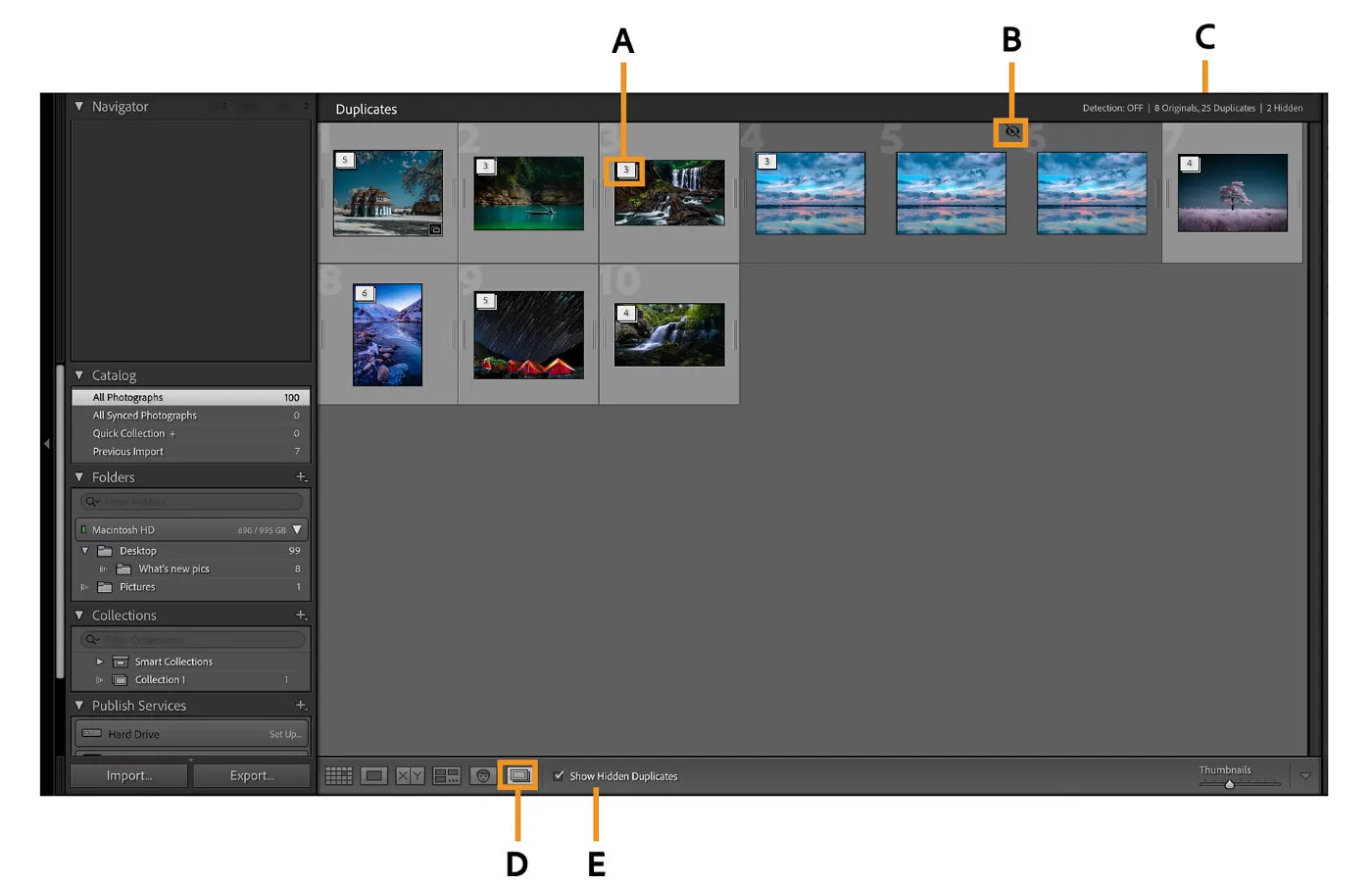
For example, a RAW file and an edited JPEG are not true duplicates in practical terms. They may show the same photo but serve different purposes. The same applies to an original and a version cropped for publication.
To work safely, you can begin by marking only. Give suspected unnecessary duplicates a reject flag or color, for example, wait a day, and delete them only afterward. That may sound slow, but it prevents regret.
Culling: choose more quickly from nearly identical photos
Culling means selecting the best images from a larger sequence. That sounds simple, but it is precisely where many photographers lose time. After a shoot, there may be twenty photos of the same situation. One image is slightly sharper, one gaze is better, and one composition is calmer.
Smarter culling can help identify obvious misses more quickly. Think of closed eyes in group photos, out-of-focus faces, or images that are clearly less usable than the rest of the sequence. This can save event, portrait, and family photographers a great deal of time.
Still, the human eye remains essential. Software can flag that someone has their eyes closed, but it cannot always judge whether a photo is emotionally stronger. Sometimes a technically less perfect photo is the one that captures the moment best. Use culling as an assistant, not a jury. Let Lightroom help with the initial pass, but make the final choice yourself.

A simple star-based selection workflow
A consistent star workflow prevents you from having to reinvent your selection process every time. Keep it simple. The more complicated the system, the less likely you are to keep using it. One practical method is:
1 star: technically usable, but not yet selected.
2 stars: possibly interesting; review again later.
3 stars: a good selection within the shoot.
4 stars: strong images that deserve editing.
5 stars: portfolio, publication, or delivery.
You do not need to rate every photo perfectly right away. The first round is meant to separate clutter from potential. In the second round, you narrow the selection. Only then do you begin extensive editing.
Sometimes a technically less perfect photo is the one that captures the moment best.
For large shoots, it can also help to start with flags alone: pick, reject, or leave unflagged. Stars then come in the second round. This keeps you from overthinking during import.
Import without creating new clutter
Cleanup really begins during import. If you bring everything in without a plan, you will inevitably build a messy catalog.
Create a consistent import structure, organized by year, month, and project, for example. Give folders clear names, such as “2026-07 Texel family” or “2026-07 Anna portrait shoot.” Add basic keywords during import when useful. Not too many—just enough to find the images later.

Also check whether Lightroom is set to avoid duplicate imports. That prevents the same card or folder from being imported again later. This can prevent a great deal of confusion, especially for photographers who work with multiple drives or backups.
What can you safely discard?
Not everything that fails technically needs to go immediately. But some images can usually be deleted with little risk.
Think of completely black or white frames, accidental photos of the ground, blurry test shots, obvious duplicate imports, and sequences in which one or two images are visibly better than the rest. Old exports can often go too if you still have the original RAW file and the edit.
A good catalog is not necessarily a small catalog. Above all, it is a catalog in which you can find what you are looking for.
Be more careful with documentary images, family photos, and photos with emotional value. Technical quality is not always the most important criterion there. A motion-blurred photo of an important moment may be more valuable than a perfect photo without meaning.
The question is not only: is this image good? It is also: why would I want to keep it?
Lightroom gets smarter, but cleanup still requires looking
Lightroom Classic 15.4 shows that photo management is becoming increasingly intelligent. Software can find duplicates, analyze groups, recognize eyes, and assist with the first selection. That is useful, especially as photographers create ever larger numbers of images.
But a tidy catalog is not created by smart features alone. It also requires a calm workflow. First back up, then select, then check, and only then delete. If you follow that order, you can clean up a great deal without becoming anxious.
Ultimately, the benefit is not just extra disk space. An organized catalog makes photography more enjoyable. You find your best images more quickly, see more clearly what you have made, and begin a new selection with greater peace of mind.
Sources: Adobe Lightroom Classic documentation.