How Do I Do That in Photoshop? by Scott Kelby is designed to quickly guide you to specific techniques, settings, and shortcuts in Photoshop. In the series How Do I Do That? gives you tips from Chapter 3, Mastering Camera Raw.
How to: Get Colors (White Balance) Right
It is often possible to solve color saturation problems immediately by correctly setting the white balance. There are three methods to achieve this.
First, choose one of the presets from the White Balance drop-down menu at the top of the Basic panel. The default is As Shot, meaning the white balance matches the camera setting used when the photo was taken.
When you open this drop-down menu, you will see a list of white-balance options you could have selected on your camera. The full list appears only for RAW photos. For JPEG files, you will see only As Shot, Auto, and Custom. Here, Custom means that you make your own adjustments with the sliders; it is not a preset.
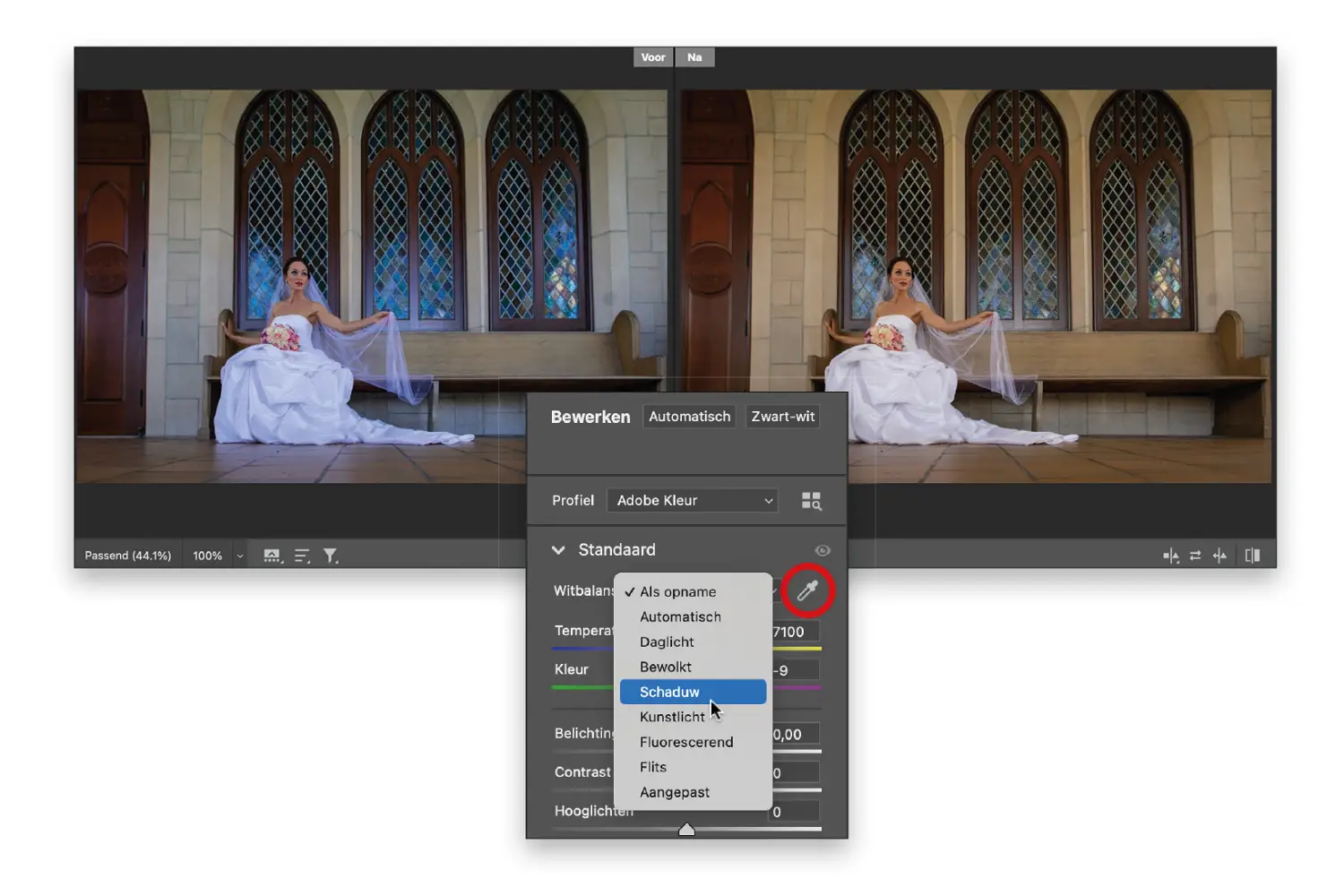
Choose the option that best suits the lighting conditions at the time of shooting, for example Fluorescent for photos taken in office environments with fluorescent lighting. If this does not give you the desired result, you are free to try other options. Try them all until you find one you like.
The second method is to get close to the desired setting with the presets, then make final adjustments with the Temperature and Tint sliders. The sliders themselves show which color is added as you move them, so drag toward the color you want to strengthen (for example, more yellow for a warmer tone or more blue for a cooler look).
Third, my personal favorite: use the White Balance tool (the eyedropper next to the White Balance drop-down menu, marked with a red circle in the image) and click on something light gray in the photo. If there is nothing truly light gray, look for something neutral—not too dark, too light, or too colorful.
Text: © Scott Kelby, How Do I Do That in Photoshop? 2nd edition
Scott Kelby, How Do I Do That in Photoshop? 2nd edition
Pages: 320
Price: €39.99
Publisher: VanDuuren Media Language: Dutch. This article refers to the Dutch-language edition.