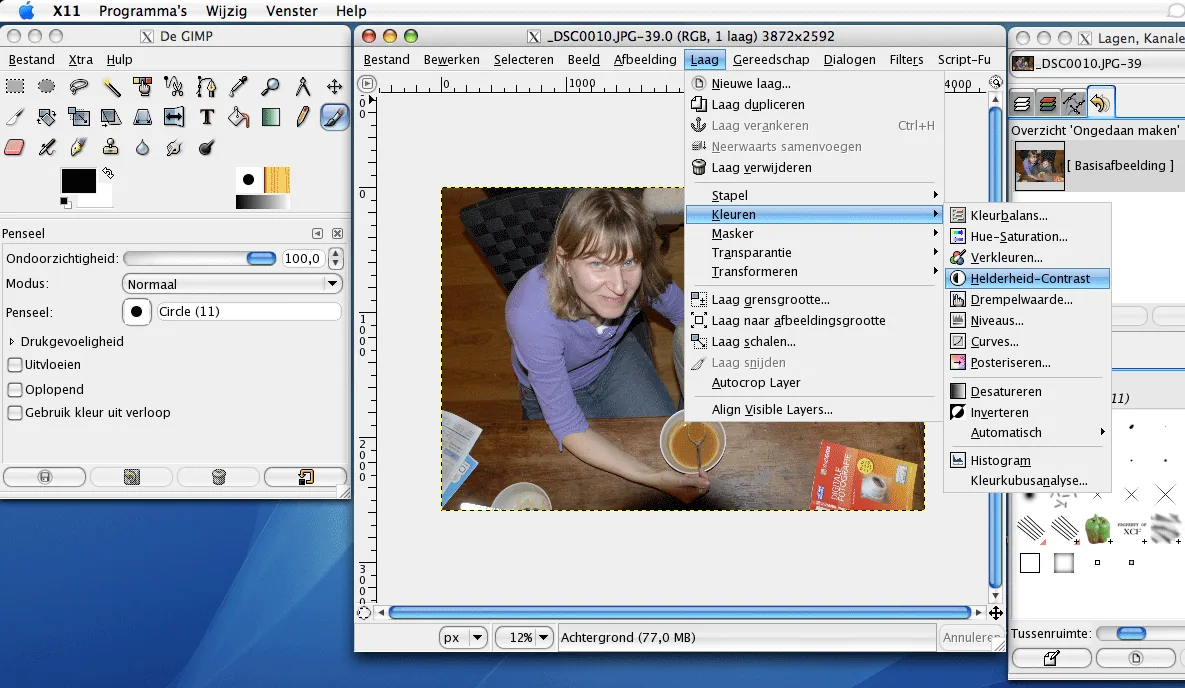
GIMP is a capable photo-editing package that is well worth installing. It is also free and packed with features. Installing GIMP on a Mac is fairly straightforward, but before you can run GIMP under Mac OS X, you first need to install X11. We will guide you through the installation process.
Installing X11
GIMP only works under Mac OS X, not version 9 or earlier.
Macintosh 10.3 users can download X11 here. Users of 10.4 cannot use this version and must install X11 from the Tiger installation DVD; choose “Install Optional Software.” The rest of the installation is self-explanatory.
To run GIMP properly under 10.5, you need the latest version of X11.
UPDATE: Starting with version 2.8.2, GIMP runs natively on OS X. An X11 environment is no longer required.
Installing GIMP
You can download the GIMP application for Mac OS X here:
From gimp.org

After downloading it, mount the disk image (Gimp-2.2.11.dmg in my case) and drag the GIMP.app file to the Applications folder as usual. Once you have started X11, you can launch GIMP. A welcome screen appears while the program completes its initial setup: the installer creates the necessary folders, and you can choose a buffer and a swap folder (I use the default settings). The first time it starts, GIMP may display a ‘caching fonts’ message; this process can take a while. GIMP then opens with a tip of the day, a toolbox window, and another window for layers, channels, and paths. The installation is complete and the program is ready to use.
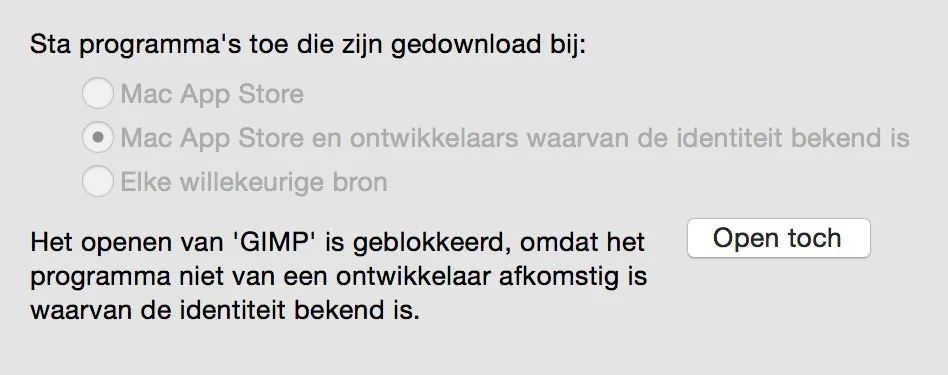
Depending on how strictly your security settings are configured, Mac OS X may still block third-party applications. If that happens, click “Open Anyway” in System Preferences>Security and Privacy.