Posting a photo online is not without risk. Adding a watermark to your photos in Photoshop reduces the chance of unauthorized use without sacrificing image quality. In this short tutorial, I explain step by step how to do this efficiently and automatically.
Automating Watermarks
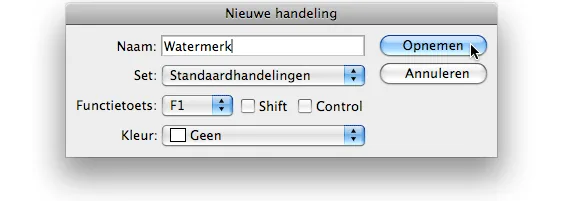
Because you ideally want to add a watermark manually only 1 time, we’ll start recording an Action right away in Photoshop.
Open a photo to which you want to add a watermark. First, go to Window > Actions to open the Actions panel. Click the icon at the bottom of the panel to create a new Action, and for convenience name it ‘Watermark.’
Optionally assign it a function key, then click ‘Record.’ From that moment on, all your steps will be recorded so you can replay them on future photos.
Adding a Watermark in Photoshop with an Action
Select the Type tool (keyboard shortcut T) and draw a rectangle across your photo. You can type your watermark inside that rectangle.

Choose the font, size, and color to suit your taste, but keep one important rule in mind: a watermark should detract from the photo as little as possible and should be almost invisible. Your photographic work still needs to be appealing to look at.
When you have finished typing, select an empty area in the Layers panel to close the text box.
Effects
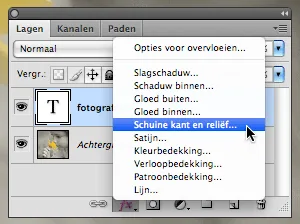
Select the text layer in the Layers panel and click the ‘fx’ icon at the bottom. Next, click ‘Bevel and Emboss’ and simply click OK in the next window. Your watermark now has a little more depth, but it is still too prominent.
To fix this, set the text layer’s opacity to between 30 and 50 percent and set the blending mode to ‘Vivid Light.’ All that remains is to merge the layers, and your watermark is ready!
Stop and Save the Action
Now that your watermark is complete, you also need to stop recording the Action. Press the Stop button in the Actions panel. You can use this Action to place a watermark over a photo effortlessly, saving you a great deal of time in the future!
The Result
The result is an unobtrusive watermark on your photo that provides sufficient protection against misuse.

Production: Peter Sparks